> ## Documentation Index
> Fetch the complete documentation index at: https://trigger-triggering-docs.mintlify.site/llms.txt
> Use this file to discover all available pages before exploring further.
# Drizzle setup guide
> This guide will show you how to set up Drizzle ORM with Trigger.dev
## Overview
This guide will show you how to set up [Drizzle ORM](https://orm.drizzle.team/) with Trigger.dev, test and view an example task run.
## Prerequisites
* An existing Node.js project with a `package.json` file
* Ensure TypeScript is installed
* A [PostgreSQL](https://www.postgresql.org/) database server running locally, or accessible via a connection string
* Drizzle ORM [installed and initialized](https://orm.drizzle.team/docs/get-started) in your project
* A `DATABASE_URL` environment variable set in your `.env` file, pointing to your PostgreSQL database (e.g. `postgresql://user:password@localhost:5432/dbname`)
## Initial setup (optional)
Follow these steps if you don't already have Trigger.dev set up in your project.
The easiest way to get started is to use the CLI. It will add Trigger.dev to your existing project, create a `/trigger` folder and give you an example task.
Run this command in the root of your project to get started:
```bash npm theme={null}
npx trigger.dev@latest init
```
```bash pnpm theme={null}
pnpm dlx trigger.dev@latest init
```
```bash yarn theme={null}
yarn dlx trigger.dev@latest init
```
It will do a few things:
1. Log you into the CLI if you're not already logged in.
2. Create a `trigger.config.ts` file in the root of your project.
3. Ask where you'd like to create the `/trigger` directory.
4. Create the `/trigger` directory with an example task, `/trigger/example.[ts/js]`.
Install the "Hello World" example task when prompted. We'll use this task to test the setup.
The CLI `dev` command runs a server for your tasks. It watches for changes in your `/trigger` directory and communicates with the Trigger.dev platform to register your tasks, perform runs, and send data back and forth.
It can also update your `@trigger.dev/*` packages to prevent version mismatches and failed deploys. You will always be prompted first.
```bash npm theme={null}
npx trigger.dev@latest dev
```
```bash pnpm theme={null}
pnpm dlx trigger.dev@latest dev
```
```bash yarn theme={null}
yarn dlx trigger.dev@latest dev
```
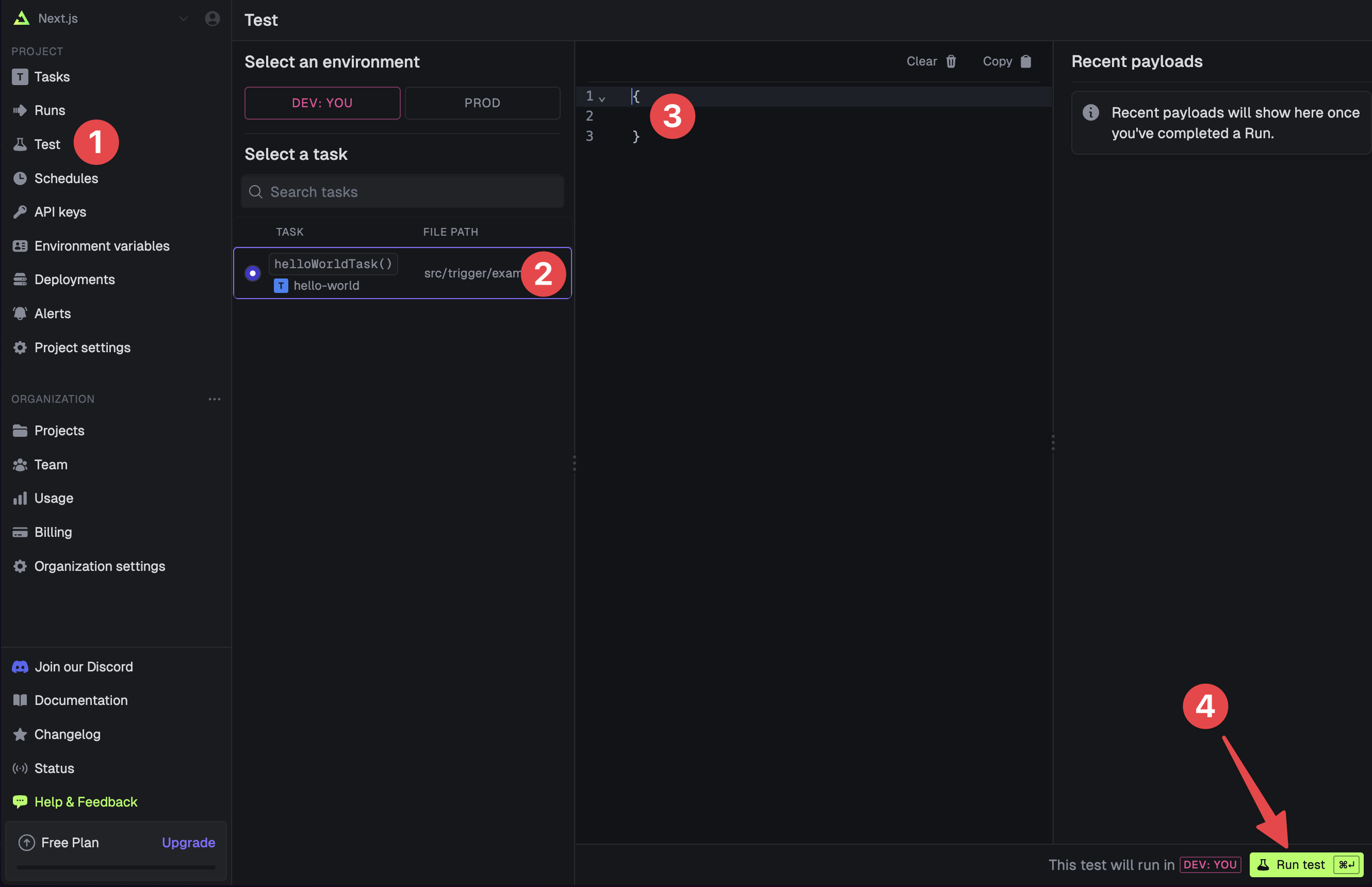
The CLI `dev` command spits out various useful URLs. Right now we want to visit the Test page .
You should see our Example task in the list , select it. Most tasks have a "payload" which you enter in the JSON editor , but our example task doesn't need any input.
Press the "Run test" button .
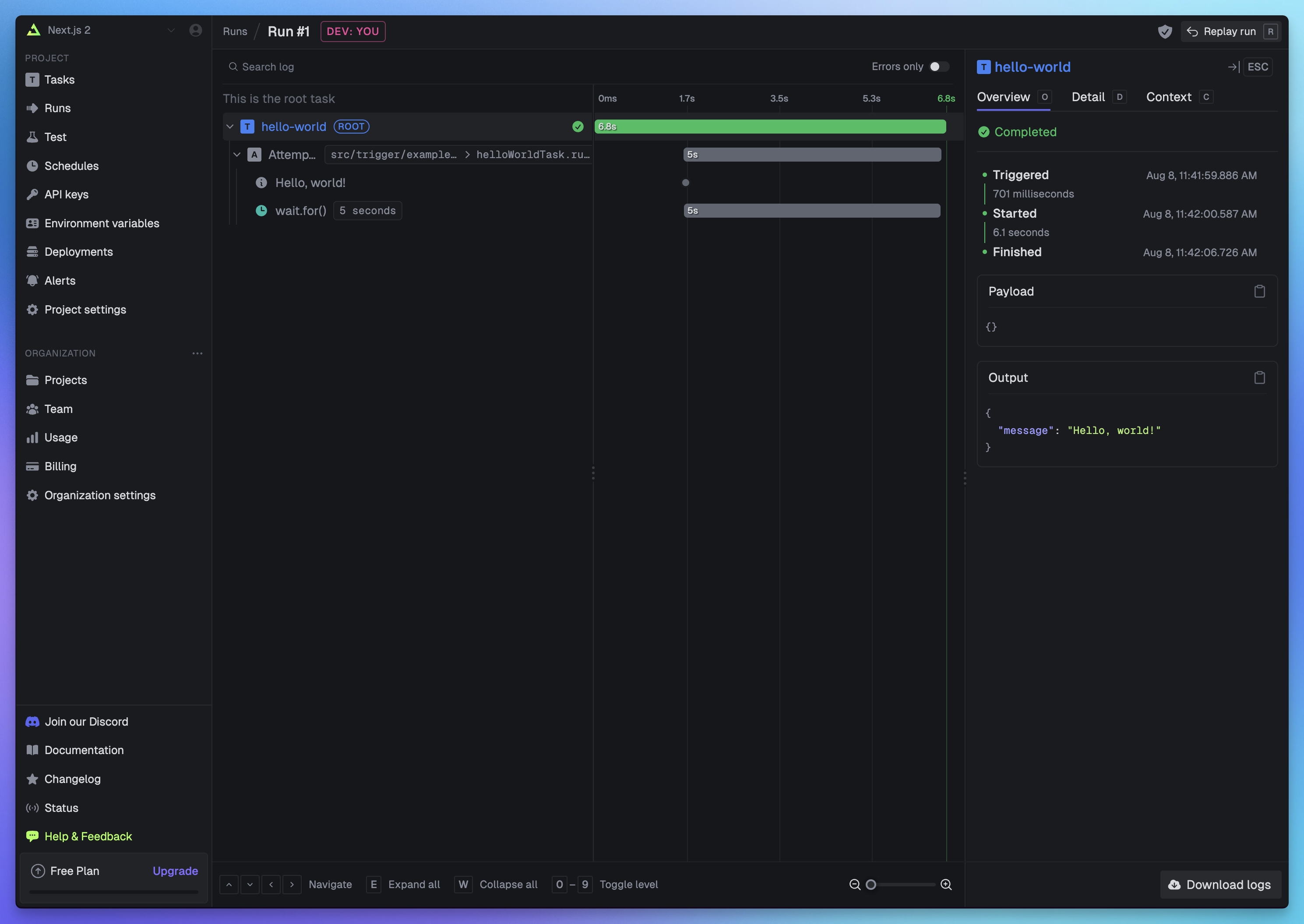
 Congratulations, you should see the run page which will live reload showing you the current state of the run.
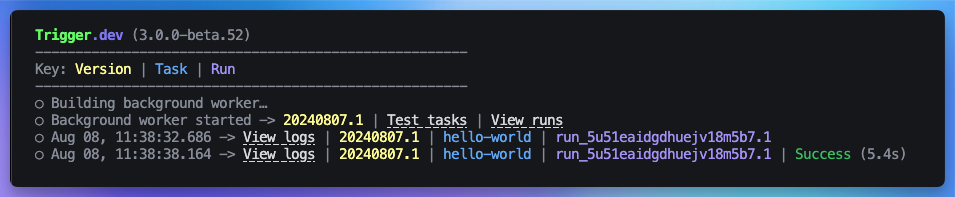
 If you go back to your terminal you'll see that the dev command also shows the task status and links to the run log.
 ## Creating a task using Drizzle and deploying it to production
First, create a new task file in your `trigger` folder.
This is a simple task that will add a new user to your database, we will call it `drizzle-add-new-user`.
For this task to work correctly, you will need to have a `users` table schema defined with Drizzle
that includes `name`, `age` and `email` fields.
```ts /trigger/drizzle-add-new-user.ts theme={null}
import { eq } from "drizzle-orm";
import { task } from "@trigger.dev/sdk/v3";
import { users } from "src/db/schema";
import { drizzle } from "drizzle-orm/node-postgres";
// Initialize Drizzle client
const db = drizzle(process.env.DATABASE_URL!);
export const addNewUser = task({
id: "drizzle-add-new-user",
run: async (payload: typeof users.$inferInsert) => {
// Create new user
const [user] = await db.insert(users).values(payload).returning();
return {
createdUser: user,
message: "User created and updated successfully",
};
},
});
```
Next, in your `trigger.config.js` file, add `pg` to the `externals` array. `pg` is a non-blocking PostgreSQL client for Node.js.
It is marked as an external to ensure that it is not bundled into the task's bundle, and instead will be installed and loaded from `node_modules` at runtime.
```js /trigger.config.js theme={null}
import { defineConfig } from "@trigger.dev/sdk/v3";
export default defineConfig({
project: "", // Your project reference
// Your other config settings...
build: {
externals: ["pg"],
},
});
```
Once the build configuration is added, you can now deploy your task using the Trigger.dev CLI.
```bash npm theme={null}
npx trigger.dev@latest deploy
```
```bash pnpm theme={null}
pnpm dlx trigger.dev@latest deploy
```
```bash yarn theme={null}
yarn dlx trigger.dev@latest deploy
```
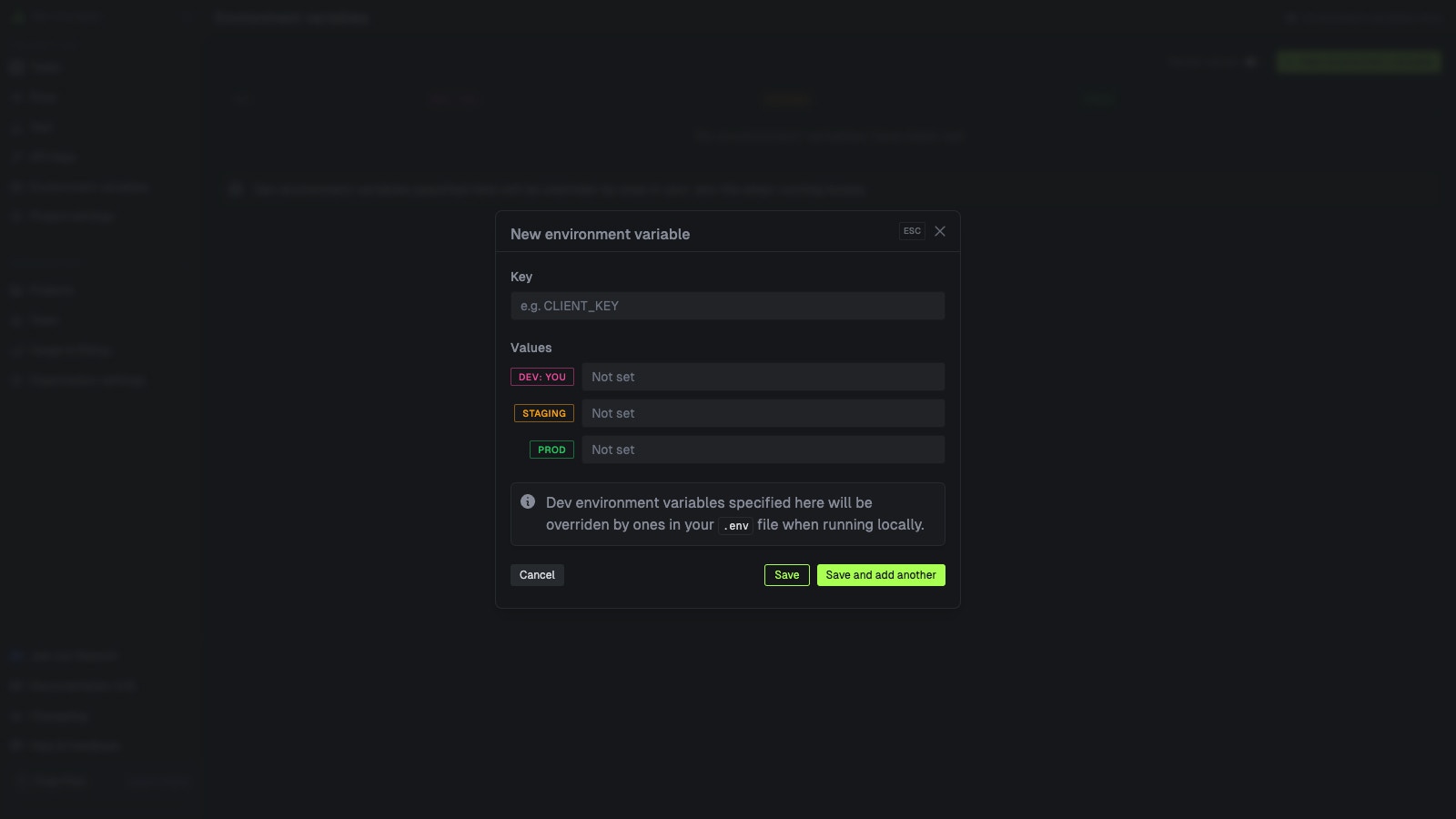
In your Trigger.dev dashboard sidebar click "Environment Variables" , and then the "New environment variable" button .
## Creating a task using Drizzle and deploying it to production
First, create a new task file in your `trigger` folder.
This is a simple task that will add a new user to your database, we will call it `drizzle-add-new-user`.
For this task to work correctly, you will need to have a `users` table schema defined with Drizzle
that includes `name`, `age` and `email` fields.
```ts /trigger/drizzle-add-new-user.ts theme={null}
import { eq } from "drizzle-orm";
import { task } from "@trigger.dev/sdk/v3";
import { users } from "src/db/schema";
import { drizzle } from "drizzle-orm/node-postgres";
// Initialize Drizzle client
const db = drizzle(process.env.DATABASE_URL!);
export const addNewUser = task({
id: "drizzle-add-new-user",
run: async (payload: typeof users.$inferInsert) => {
// Create new user
const [user] = await db.insert(users).values(payload).returning();
return {
createdUser: user,
message: "User created and updated successfully",
};
},
});
```
Next, in your `trigger.config.js` file, add `pg` to the `externals` array. `pg` is a non-blocking PostgreSQL client for Node.js.
It is marked as an external to ensure that it is not bundled into the task's bundle, and instead will be installed and loaded from `node_modules` at runtime.
```js /trigger.config.js theme={null}
import { defineConfig } from "@trigger.dev/sdk/v3";
export default defineConfig({
project: "", // Your project reference
// Your other config settings...
build: {
externals: ["pg"],
},
});
```
Once the build configuration is added, you can now deploy your task using the Trigger.dev CLI.
```bash npm theme={null}
npx trigger.dev@latest deploy
```
```bash pnpm theme={null}
pnpm dlx trigger.dev@latest deploy
```
```bash yarn theme={null}
yarn dlx trigger.dev@latest deploy
```
In your Trigger.dev dashboard sidebar click "Environment Variables" , and then the "New environment variable" button .
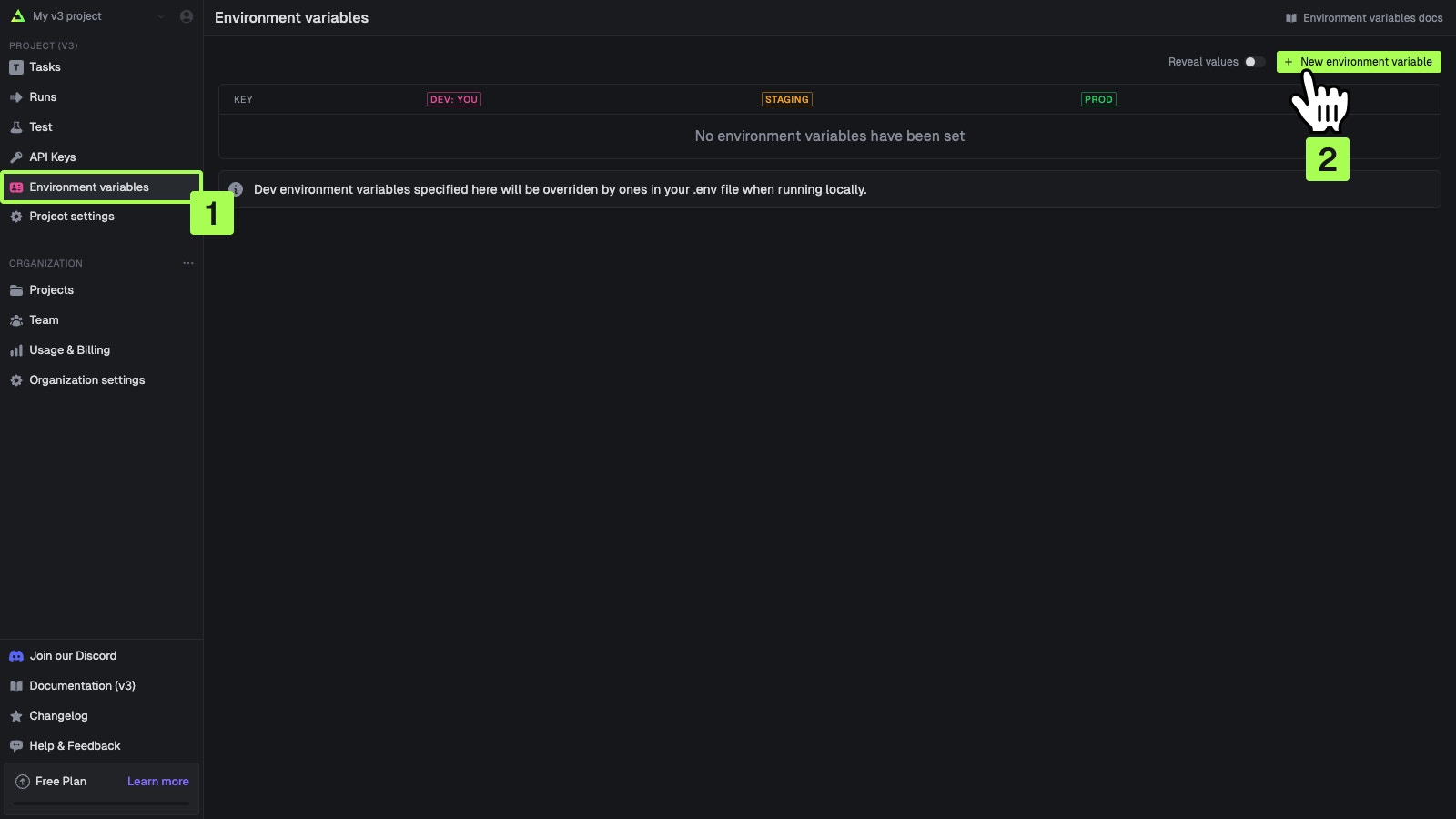 You can add values for your local dev environment, staging and prod. in this case we will add the `DATABASE_URL` for the production environment.
 To test this task, go to the 'test' page in the Trigger.dev dashboard and run the task with the following payload:
```json theme={null}
{
"name": "", // e.g. "John Doe"
"age": "", // e.g. 25
"email": "" // e.g. "john@doe.test"
}
```
Congratulations! You should now see a new completed run, and a new user with the credentials you provided should be added to your database.
## Useful next steps
Learn what tasks are and their options
Learn how to write your own tasks
Learn how to deploy your task manually using the CLI
Learn how to deploy your task using GitHub actions
To test this task, go to the 'test' page in the Trigger.dev dashboard and run the task with the following payload:
```json theme={null}
{
"name": "", // e.g. "John Doe"
"age": "", // e.g. 25
"email": "" // e.g. "john@doe.test"
}
```
Congratulations! You should now see a new completed run, and a new user with the credentials you provided should be added to your database.
## Useful next steps
Learn what tasks are and their options
Learn how to write your own tasks
Learn how to deploy your task manually using the CLI
Learn how to deploy your task using GitHub actions